
I have released my second WordPress Plugin – Remote Database Backup. Its is based on the WordPress Database Backup plugin. If you are a regular wordpress user, you might be better off using WordPress Database Backup plugin instead of my version. But if you, like me, have a local server on your system and has a copy of your site on the local server as well as the online server, you will find great use for my plugin.
My plugin is designed to make it possible to remotely create and download wordpress database backup in form of SQL dumps. You can then use these dumps to sync the local version of your site with the online version.
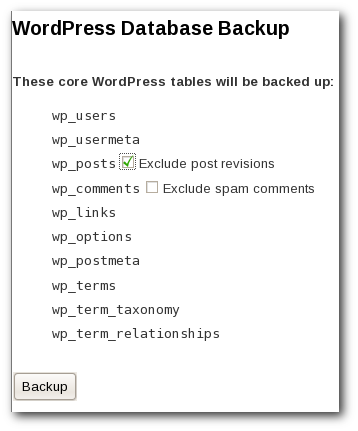
Backuping your WordPress Database
- Install Remote Database Backup Plugin in WordPress
- Login to WordPress site
- Go to the Backup Page(Manage > DB Backup)
- Create a backup
- Download the backup file to your system
Sync With Local Server
And if you have a local version of your site, you can sync it with the online site using the backup file. Just follow these steps…
- Extract the backup file(its in the tar.gz format)
- Import it into your mysql database.
- Make some changes to the database(like set the home url) so that wordpress works locally
Automation Script
You can do all these steps manually – or you can use the automation script I have cooked up. You need PHP installed in your system for this to work(I assume you already have PHP if you have a local version of wordpress).
To use the script, first install the plugin. Then download the script and rename it to ‘backup.php'(the extension must be ‘php’ instead of ‘txt’. Now open it in your favorite editor and change the variables to match your site. You can run it by opening a terminal/command prompt and navigating to that folder and executing the command ‘php backup.php’. This will automatically make a backup and sync it with your local database.
Need Feedback
Let me know how it works for you if you are installing the plugin – its the first release – so I need some feedback.
Very nice script, thanks. It had a little error, I had to change line 36 to:
$backup = load($site_url.’/wp-admin/edit.php?page=remote-database-backup/backup.php&exclude-spam[]=wp_comments&action=Backup’, array(‘method’=>’get’,’return_info’=>true, ‘curl_handle’=>$result[‘curl_handle’])); //Create a backup of the core tables
and, it took me a minute to figure out that it resets your admin password to “admin”
and, you have to manually create the folder “Dumps” in the directory where the script resides
but, other than those things, I love it! really helpful tool!
Thanks for the feedback. I have created a new version of the plugin. There was a lot of confusion between ‘db’ vs ‘database’ – now its fixed at ‘database’ – so your script should work with the newer version as well.
I’ll add a note about the ‘admin’ password changing. And I’ll update the script to create the Dumps folder. Soon.
Once again, thanks.
I have a local version of my site too. So this tool will be very helpful.
Thanks Binny.
Binny…I am also a plugin developer and I like your idea – platinum seo and broken links remover…Now hwhat happens to the existing data in i try to sync up again.does it delete them and recreate the data in the local setup?
I have a suggestion for this plugin – can you implement incremental backups.so every time i try to do a backup only the incremental stuff gets backed up.and run a script to merge all the incremental versions into one on the desktop.That will be a killer plugin , i think.
@Rajesh
> what happens to the existing data
Its deleted – and the new data is inserted in its place.
> Incremental Backups.
Its a good idea – I’ll think about this. Maybe in one of the future releases, I’ll add this option.
Thanks for your feedback. Btw, I have used Platinum SEO plugin – good job on that.
Me again. I’m still using your script and have a couple small recommendations, that might save someone else the 30 minutes i just spent 🙂
1) line 24 of the script says:
$result = load($site_url.”/wp-login.php?log=$username&pwd=” . urlencode($password) .”&wp-submit=Log In&testcookie=1″, array(‘method’=>’post’,’return_info’=>true, ‘curl_handle’=>false));
with a space between “Log” and “In”. That worked on one of my servers, but another choked, I had to change the space to “%20″ to get it to work, like so:
$result = load($site_url.”/wp-login.php?log=$username&pwd=” . urlencode($password) .”&wp-submit=Log%20In&testcookie=1″, array(‘method’=>’post’,’return_info’=>true, ‘curl_handle’=>false));
2) if you have set an non-standard table prefix for your wordpress database, it goes moo. you might want to figure out a way to grab the prefix if possible, or at least put this in your instructions.
great work! thanks!
does the Remote Database Backup plug-in work in WP 2.7? I installed it & can’t find it in the admin area.
Thanks!
aah – i see it’s under the posts menu in the sidebar! thanks for creating this.
This is a very easy to use plug in.
And because I know 1000 reasons to back-up I love it
I installed the plug-in and the automated script but when I run it from the dos prompt it saids php command not recognized? Also, I dropped the backup.php file into my root dir for wordpress and tried to run it from their and it saids curl not installed. I download curl and run it and still no go. Please advise. I’d really love to get this to work. I’m running 32bit WinXP on a PC.
Follow the instructions on this page about curl installation in Windows…
http://php.net/manual/en/curl.installation.php
Now I feel like I’m missing something really small. I got rid of all the errors. I’m running the backup.php file through firefox in my root directory and I get this message:
“Logging into WordPress … done. Creating a backup … Download file not found – exiting… ”
I’m in Tools/ Backup and peform the backup but it’s not finding the file. Do I need to set this somewhere in the backup.php file?
I assume you have installed and enabled the plugin. After that, you don’t need to create the backup manually – the backup.php will do it every time you run it.
If its not working, create a folder called ‘Debug’ in the same folder you have backup.php in. The next time you run the command, it will save a copy of the downloaded html file in that folder. You can take a look at that to see if login is done correctly. Let me know how it goes.
Yep. I have the “Debug” folder at the root of the installation. backup.php is not suppose to be inside of debug, right? Also, in the debug folder the tool has already created login.html and backup.html.
Can you send me those two files thru email. I need those to debug the problem. My address is binnyva, gmail.
It seems very interesting
🙂
I tried this on my site and got the message that
“Logging into WordPress … Curl not installed – this script needs curl to work. ”
Kindly suggest, what do I need to do to this script work
You have to install a curl extension for PHP in your system. Follow the instructions on this page about curl installation in Windows…
http://php.net/manual/en/curl.installation.php
Could I use the same script to backup my database if I have another mySQL server?
I’m not sure if I know what you mean. Can you be a bit more specific?
Hey great plugin! Im new to this and way over my head I think!! 🙂 Backups are my lifeline!!
So i’ve managed to get everything working and im using your Automation Script…
AND I get the done done done message, I also get the two backup (.sql.gz) files one in the /wp-content/backup-87e33/ on my live site and the other into the root folder of my “local” site…
BUT what dosn’t seem to happen is the sync….
I should also mention im not using this to sync localy but to a subdomain of the live site (which I plan on being my staging sever for my live site)
Hope this all makes sense! and i hope you can help solve why it isn’t updating my staging server database
Hi,
I’m trying to use the automation script for remote database backup. Everything seems to be working okay up to the point where sync is supposed to happen. Then, I get the following output in Terminal:
Logging into WordPress ... done. Creating a backup ...

Done. Downloading http://christophr.com/wp-content/backup-57bcb/christop_wp_wp_20100423_317.sql.gz ...

Done. Saving it to file ... Done

Syncing with Local database ... sh: mysql: command not found

Done

All Done
Can you please tell me what this means and why syncing isn't happening? I have been looking for a script/plugin like this for over two years and if I could get this working it would be WONDERFUL.
Any help you can offer, would be greatly appreciated. Thank you!
It looks like you don’t have MySQL installed in your system. Install MySQL and try again.
Hi Binny, thanks for your help! Just an update and another question: I got past the problem I described in my last comment. It turns out that there was a symlink missing from my bash profile – system didn’t know where to find mysql. Got that problem fixed and now the script executes properly with no actual error, but it gets to the part where it says ‘Syncing with local database’ and then it just sits there. Forever. And nothing else happens. No further messages, no errors. It just sits there.
Do you have a suggestion for what I might try? I’m very excited having made this much progress already on this! Thank you very much for your help!
I should also note that I noticed that tmp.sql gets created in the directory from which I’m running this script, as does the .sql.gz file which is a dump of my database from the remote server)
(running the script from my home directory, on OSX 10.6.3, running MAMP Pro 1.9)
Sorry for additional comments! Just trying to be as thorough as possible so you’ll have a better idea of the exact issue.
Logging into WordPress ... done. Creating a backup ...

Done. Downloading http://christophr.com/wp-content/backup-57bcb/christop_wp_wp_20100423_873.sql.gz ...

Done. Saving it to file ... Done

Syncing with Local database ...
Well, had to report back that it works now!
I have to say, unfortunately, that I do not know what I did to make it work! Haha. I just kept changing things around in the script and re-trying it, over and over again.
Finally, it just worked! I wish I knew what I did and that I could tell you, so that others who may be stuck could benefit from the knowledge, but all I know to say is that it was a connection issue with the script not being able to access the database.
I also discovered for some reason that I could not reference my local database server as ‘localhost’, I had to actually put in the IP address of 127.0.0.1 which I thought was odd since I can request http://localhost in my browser and it resolves properly.
Anyway, it works now and to sum up, I wanted to A) thank you for writing such an AWESOME script to accompany such an AWESOME plugin, and thank you for your generous help in offering support to me and others through your blog.
Cheers!
Glad to know that you got it working 🙂
Hi,
I’ve been trying this script with my two sites. It runs fine and doesn’t report any errors, and I get the .sql.gz file in the root of my local website. The sync is reported to happen without errors, but the local content doesn’t seem to change. What is happening?
Also, is there any chance of a version of this script which doesn’t reset the local admin password – that’s a real pain.
Thanks
Andrew
Actually, I never did get it to work, Binny. I got as far as Andrew did, stuck with same problems.
This has the potential to be the greatest plugin ever made – if only we could figure out why it isn’t working just right.
I am utterly amazed at how simple you made this for me. Thank you for your hard work as this plug-in is a most for anyone who understands that information can be easily lost.
Would this work with WP 3.0? Some info suggests it would not… but may be just outdated?
That would be great!
Agnes
I am utterly amazed at how simple you made this for me. Thank you for your hard work as this plug-in is a most for anyone who understands that information can be easily lost.
Thanks Binny,
I have been using your plugin since last 6 months, it is doing funtastic job. Just wondering if it is updated for wp 3.0.5?
Cheers
Sharad
Hello Binny!,
First of all, thanks a lot for sharing this wonderful script. I’m loving it 🙂
I’m trying to set a deployment process (using your script) that will send my local WP db and files (Windows7+XAMPP) to my Amazon EC2 (Ubuntu10+Bitnami WordPress stack).
The first problem I encountered is how to run ‘gzip’ and ‘mysql’ in a windows machine. I’m trying to do something like this:
`C:\Program Files\WinRAR\UnRAR.exe e $file_name > tmp.sql`;
`C:\xampp\mysql\bin\mysql.exe -h $staging_db_server -u $staging_db_username $staging_db_password $staging_db < tmp.sql`;
but obviously this is not working 🙁
I will continue reading about it and post here anything I discover. Probably the exec() command of php can help…
Please, share your ideas if you have any.
Thanks a lot!
Joan
I am utterly amazed at how simple you made this for me. Thank you for your hard work as this plug-in is a most for anyone who understands that information can be easily lost.
Thanks. It working fine. Got my DB
Thanks a lot for this plugin. very, VERY useful. Don’t know if I these were problems only for me, but I’d suggest a few very small changes:
I’d change line 58 to
`mysql -h $local_db_server --user=$local_db_username --password=$local_db_password --default-character-set=utf8 $local_db < tmp.sql`;
Why? well, on my machine, default-character-set was set to latin1 and that caused some trouble, also, not setting –password=$local_db_password explicitly made my install of mysql stop.
Anyway, thanks again.
Thanks. I finally downloaded my databases 🙂